Monday, February 13, 2017

Dr. Agon's Pasapalabra

At the request of a local Spanish teacher, I created this customizable version of the popular game show "Pasapalabra" (which in turn was based on the British game show "The Alphabet Game").

To play this game, the first thing you'll want to do is download and install the game.

You can find instructions for how to download and install one of my custom unity games here.

Once everything is on your computer, simply run the app.

On the first screen you'll be allowed to choose whether to set up a new game (provide it's name here!) or open a saved game.


When setting up a new game, the first thing you do is enter the answers. Be sure that each answer contains the letter associated with it! (If you don't want to use all the letters, no problem! Any letters you leave alone will be omitted from the game.)


Next, you'll enter in the prompts. These should give the clues necessary to guess the target word.


Now your game is ready to play! If you aren't going to play now, just close the app and open it when you are ready. Here is what the main game interface looks like:


 A player clicks on a letter, and is provided with a prompt, they then need to type what they think the answer is in the box in the middle and click submit. (They can use the buttons on the left to help with special characters.)


When a player gets an answer right, the button for that letter turns green, and the countdown number in the top right drops by one. Once all the boxes are green and the countdown reaches 0 the game is over!


Note that the game is only saved directly to your computer. So you won't be able to play it on another one.

I'd love to hear suggestions on how to improve this game, and also hear any comments on how well this game has worked in your class! Have fun teaching!

See sample content ideas here.

Please post any suggestions for more shared content ideas in the comments section below.

Here you can see the slideshow about Pasapalabras presented at UAFS in the fall of 2018.

This link is for the UAFS 2018 presentation activity.

Tuesday, January 3, 2017

Self-grading Spreadsheets

One of the disadvantages of many digital teaching tools (such as tests on Learning Management Systems) is a delay between the time that a student enters an answer and when they receive the feedback. Usually a student must complete an entire activity before they can get any feedback. This means that if they got something wrong, they may continue thinking that they got it right, and by the time they know better, they've already forgotten their train of thought for that question.

Self-grading spreadsheets overcome this problem by instantly providing feedback after each question is answered. By providing this instant feedback, self-grading spreadsheets allow learners to stay focused on one question at a time, until they learn it and get it right.

I have prepared a freely available downloadable self-grading spreadsheet template here. This template is for Microsoft Excel.*


Instructions for how to use the spreadsheet are included within the template itself.

This template allows you to create open-ended questions and multiple choice questions (which require a little bit more work for the instructor, but are very much preferred by the students!)

As always, if you have any comments, questions, etc. I'd love to hear from you!

*I don't recommend you use a Google Sheet for this particular activity type because the way Google locks cells is different (and messier), and you would also need to create a separate copy of the Google sheet for each student (unless, of course, you want them to collaborate.)

Thursday, December 29, 2016

Dr. Agon's Spanish Numbers

Want to practice reading and writing your numbers in Spanish, but aren't sure how? Well, you're in the right place!

Dr. Agon's Spanish Numbers is a freely available downloadable game that allows you to practice your Spanish numbers between 0 and 2,000,000!

You can download the game here.

After downloading the game, pick the range of numbers you want to practice by indicating the smallest and largest numbers of the range.
Next choose which mode of play you want to do: Easy, Medium, or Hard.

In Easy mode, the game provides you with the written-out version of a randomly selected number, and five randomly selected numbers in digits. Your job is to click on the correct number.


In Medium mode, the reverse happens. The game provides you with a number in digits, and you need to choose which written-out version is correct.


Finally, in Hard mode, the game provides you with the written-out version of the number and you need to identify the number using digits.


All three versions of the game are communicative input activities, which means that you are being forced to associate the provided Spanish with something meaningful (the digits). Communicative input has been shown to be one of the most effective ways to learn vocabulary, so hopefully this game will help you learn your numbers in Spanish!

As always, I'd love you hear any feedback that you may have about this tool!

Happy Language Learning!

The Communicative Vocabulary Game

One of the best ways to learn vocabulary (especially low-frequency vocabulary) is through frequent, shallow practice (see Nation 2001). This means that you will learn words best by being exposed to them as much as possible. However, this practice is best when it is as communicative as possible.

The Communicative Vocabulary Game (TCVG) is a new tool that I have created to help my students get this kind of practice with the vocabulary covered in our current textbook (Mosaicos).

Although not all questions are communicative, as many as possible are. To make them communicative, students must identify pictures, synonyms, antonyms, or even definitions in Spanish. For words that these communicative exercises were not possible to create, such as words taught in early chapters, students need to identify the definition in English.


One of the great features of TCVG is that the answers provided each time are randomly generated and arranged, so it is not possible to memorize a specific question set. Rather, students actually need to learn the vocabulary to do well at the game.

In the bottom left hand corner of the game are some numbers in the format of: A / B (C).
  - A is the number of vocabulary items the student has gotten right.
  - B is the total number of vocabulary items (this number varies depending on which chapter is being played.)
  - C is the number of wrong answers a student has submitted.

In my classes I usually play TCVG with my students on the first day that we cover a new chapter. I have them bring laptops to class with the game already installed on it, and break them into groups. They work together to see which group can finish the vocabulary for the new chapter the fastest, without making more than 50 errors.

In my experience students really enjoy playing this game as a way to help them learn the many vocabulary words we cover in this textbook.


After downloading the Windows version, unzip it, and run the exe file.
After downloading the Mac version, install it, and run the app. (Warning! The Mac version is untested.)

I'd love to hear any feedback (suggestions, complaints, problems, praise, etc.) that anyone may have about this game! Happy Language Learning!

Wednesday, July 6, 2016

Risky World Improved!

Risky World has been upgraded!!

In the original version of Risky World you were only able to play Risk (e.g. paint the countries different colors and swing your mouse over the countries in order to see what their names are). In the upgraded version there are three new ways to play around with the countries of the world!

But of course the main way to play is to simply play Risk with this game. And Risky World is still a great tool just for this!


The new options are primarily designed to help you learn your countries. I added these versions in order to help my students learn the Spanish-speaking countries of the world!


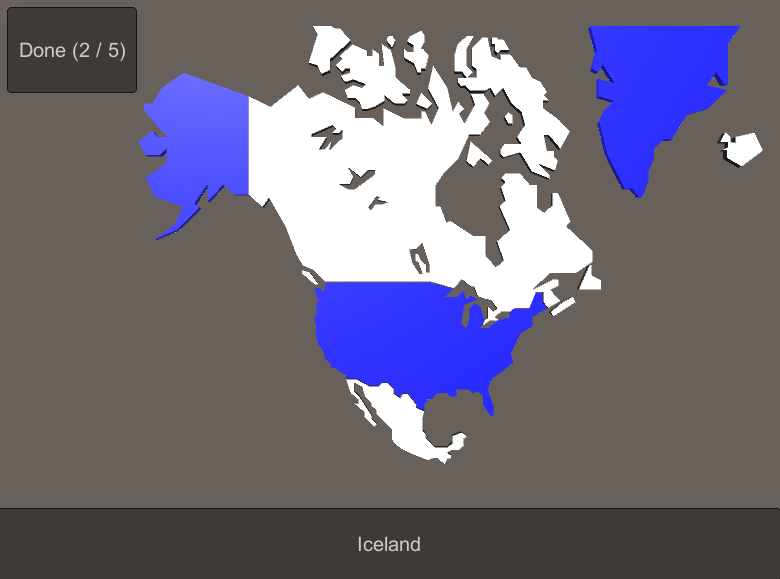
In the first new version, the game names a country and you need to click on that country.


In the next version, the game highlights a country for you, and you need to select the name of the country from a provided list of options.


And finally, in the last version the game highlights a country for you and you need to type in the name of the country.


And of course, as you can see in these screenshots, in all versions of the game you are still able to limit which countries you will be playing with. You can limit the countries by what continent they're on, their population, their area, what language they speak, and their minimum GDP per capita!

Have fun learning your countries!

You can now play Risky World online in your browser for free!

You can download Risky World to play on your Windows machine. (Download. Unzip. Run exe.)